I Couldn't Get a Free Server, So Rooted a Dead Phone Instead
Part 1 of 2: bootloader unlocking, Magisk, and the kernel config that killed my Docker plans.
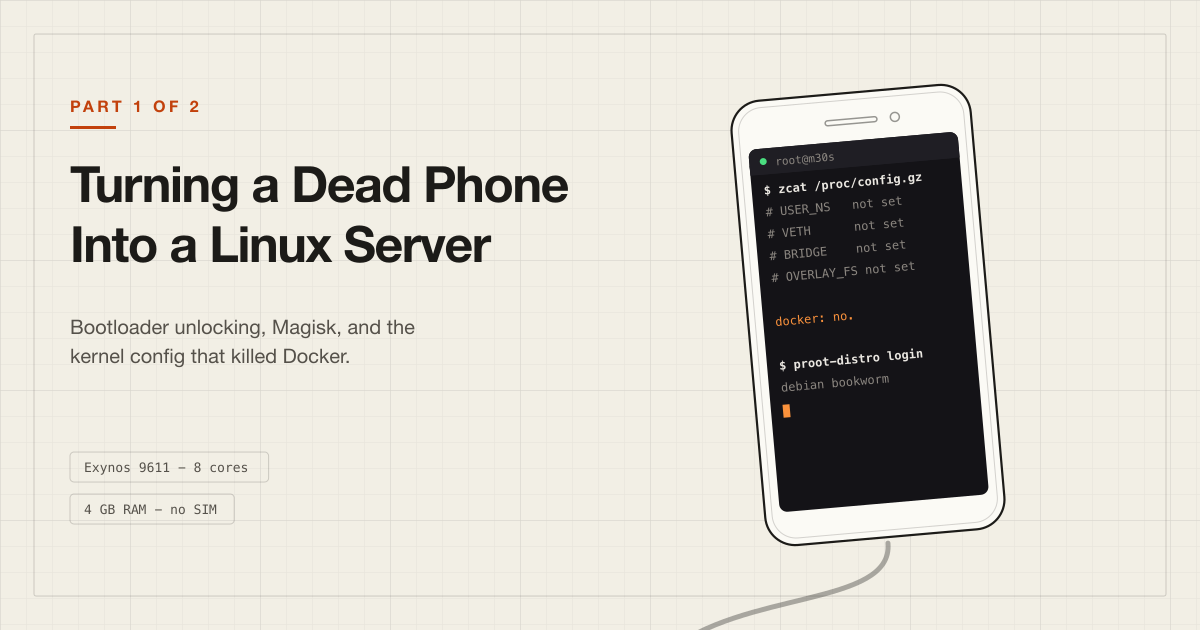
The server that didn't exist#
I wanted somewhere to run a Go service. Nothing heavy - an API, a River job queue, a worker process. The kind of thing that would be bored on any real machine.
Oracle Cloud's Always Free tier looked perfect. They give away an Ampere A1 instance: four ARM cores and 24 GB of RAM, permanently, for nothing. People run entire homelabs on it. I made an account, walked through the instance creation wizard, picked VM.Standard.A1.Flex, dialled it down to a modest 2 CPU / 12 GB to be polite about it, and hit Create.
Out of host capacity.
I tried again. Same thing. I tried a smaller shape. Same thing.
Here's the part that took me a while to understand: Always Free compute has to live in your tenancy's home region. Mine was Hyderabad. Hyderabad has exactly one availability domain. So the usual advice - "try a different AD, it's just capacity pressure" - didn't apply. There was no other AD to try. Mumbai exists, but a free-tier tenancy is limited to one subscribed region, and Always Free compute has to be in the home region anyway. Creating a paid VM in Mumbai to route around a free-tier limit rather defeats the point.
The consolation prize was VM.Standard.E2.1.Micro: 1/8 of an AMD core baseline (burstable) and 1 GB of RAM. I created one. It exists. It is not a machine you compile Go on.
So I sat there with a browser tab full of capacity errors, and I opened the drawer where old electronics go to die.
What's actually inside a Galaxy M30s#
There was a Samsung Galaxy M30s in there - my dad's, originally. Indian dual-SIM model, SM-M307F/DS. Nothing was wrong with it except the one thing that makes a phone a phone: both SIM slots had stopped reading cards. No signal, no calls, no mobile data. That's what put it in the drawer a couple of years earlier - a perfectly healthy computer that couldn't be a phone, and therefore, as far as anyone in the house was concerned, useless.
It still charged. It still held Wi-Fi. Neither of those seemed worth much until I needed a machine that sits on a desk and talks to the network - which, it turns out, is the only job this thing was still qualified for.
The spec sheet is more interesting than I expected:
Galaxy M30s (SM-M307F/DS)
-------------------------
SoC:      Exynos 9611
Cores:    8 (ARM64)
RAM:      4 GB physical
Storage:  64 GB + microSD
Android:  11
Kernel:   Linux 4.14.113
Eight ARM cores and 4 GB of RAM. Compare that to the E2.1.Micro I'd just been given: 1 core, 1 GB. The dead phone in my drawer was, on paper, an order of magnitude more machine than Oracle's free tier had actually offered me.
It also has a battery, which is a genuinely nice property in a server. A phone is a small computer with a built-in UPS.
So the question became: how much of a Linux server can I actually get out of this thing?
The question I should have asked first#
My original plan was Docker. My project already had a docker-compose.yml. I'd just docker compose up on the phone and be done.
I want to be honest that this was the assumption I spent the most time on, and it was wrong, and finding out why it was wrong turned out to be the most educational part of the whole exercise.
Docker isn't magic. It's a userspace program that asks the Linux kernel for a specific set of features: namespaces to isolate processes, cgroups to constrain them, veth pairs and a bridge to network them, OverlayFS to stack their filesystems. If the kernel doesn't offer those features, Docker has nothing to stand on.
If half of that sentence meant nothing to you, don't worry. It meant nothing to me either. I'd been typing docker compose up for years and had never once needed to know what a veth pair was. I only learned any of this because the phone refused to cooperate, so if you're starting from nothing here, you're starting roughly where I did.
Android runs a Linux kernel. But it runs a vendor Linux kernel, compiled by Samsung, for a phone, with a config that reflects what a phone needs. Nobody at Samsung was thinking about containers when they built the M30s kernel in 2019.
I didn't know yet whether the features were there. To find out, I needed root. To get root, I needed to unlock the bootloader. And unlocking the bootloader on a Samsung means committing to a few things that don't come back.
Committing to the wipe#
Three things happen when you unlock a Samsung bootloader:
- All user data is erased. Not optional, not recoverable.
- The Knox warranty bit is permanently tripped. Knox is Samsung's hardware security layer, and its job is to let the phone prove to an app that nobody has tampered with the software underneath it. That proof is anchored to an efuse: a tiny physical fuse inside the chip, which the bootloader blows the first moment it boots software Samsung didn't sign. Software can blow it. Nothing can put it back, because there is no longer a wire there to reconnect. From then on the phone honestly answers "yes, this device has been modified" to anything that asks, so Samsung Pay, Secure Folder and a fair number of banking apps refuse to run on it. That's permanent. Flash the stock firmware back and the phone looks factory-fresh, but the fuse is still blown and those apps still say no.
- If you break it, you're the one fixing it. Flash the wrong file and the phone may not boot at all. There's no undo, and no warranty left to fall back on.
For a phone anyone still relied on, none of that would have been acceptable. For a phone that had been in a drawer for two years, replaced long ago, all three were fine. I backed up the handful of photos still on it and stopped worrying.
The unlock itself is a sequence of button presses that feels absurdly low-tech for something this consequential:
- Settings → About phone → Software information → tap Build number seven times to enable Developer options.
- Developer options → enable OEM unlocking. (If this toggle is missing, the phone hasn't been online long enough - Samsung gates it behind a check that needs a few days of uptime and a signed-in account.)
- Power off. Hold Volume Up + Volume Down and plug in the USB cable.
That drops you into Download Mode, which is Samsung's flashing interface: a plain text screen on a black background. Mine said:
PRODUCT NAME:     SM-M307F
CURRENT BINARY:   Samsung Official
OEM LOCK:         ON(U)
Secure Download:  Enabled
CARRIER_ID:       INS
RP SWREV:         B:4 K:4 S:4
OEM LOCK: ON(U) is the state you want before unlocking - locked, but unlockable, because the developer-options toggle is on. OFF (U) is what you get afterwards.
RP SWREV: B:4 K:4 S:4 matters more than it looks. That's the anti-rollback revision. The bootloader will refuse firmware older than binary 4. Flash the wrong build and you get a phone that won't boot and can't be downgraded back out of it.
Then: long-press Volume Up. Not a tap - a hold. A second warning screen appears. Confirm with Volume Up again.
The phone wipes itself and reboots. On the way up it shows a warning about an unlocked bootloader, which is expected and which it will now show on every single boot for the rest of its life.
Getting the exact firmware, before touching anything#
Rooting a Samsung means going the long way round. You can't hand the phone a modified image and tell it to boot from that. You download the exact firmware Samsung shipped for your device, let Magisk modify one piece of it, and flash the whole set back using Samsung's own tool.
Two names worth knowing before the rest of this makes sense.
Magisk is the root tool. The older way of rooting a phone was to reach into /system - the actual Android system partition - and change it:
/system
   +-- modified file
   +-- root binary
   +-- other changes
Magisk leaves all of that alone. It changes what happens on the way in instead - patching the boot image so its own code runs early in startup, with root set up from there:
Without Magisk        With Magisk
--------------        -----------
Boot                  Boot
  v                     v
Android               Magisk
                        v
                      Android
The system partition is never touched, which is why this is called systemless root. Undoing it is just flashing the original boot image back - nothing else on the phone was changed.
Worth being clear about one thing: systemless doesn't mean invisible. Magisk has tooling for keeping root out of a given app's view, but detection looks at a lot of signals and plenty of apps still notice. Systemless means the changes are contained and reversible, not undetectable.
Odin is Samsung's flashing tool - internal software that leaked years ago and became the standard way to put firmware on a Galaxy. Windows-only, talks to the phone over USB while it sits in Download Mode, and essentially unchanged for a decade.
The four-letter filenames are Samsung's partition groups: AP is the Android platform itself, containing system, boot and recovery, and it's the one Magisk patches. BL is the bootloader, CP the modem firmware, CSC the region and carrier configuration.
So, in order:
- Download the exact stock firmware your phone is running.
- Copy the AP file from it to the phone.
- Let the Magisk app patch that AP file.
- Flash the patched AP back, alongside the untouched BL / CP / CSC files, using Odin on Windows.
Step 1 is the one people skip, and it's the one that saves you. Before modifying the boot image, get a known-good copy of the boot image.
Mine was SM-M307F / INS / M307FXXS4CWC2 - binary 4, matching the B:4 on the download screen. That's a ~4 GB archive from one of the Samsung firmware mirrors. Extracted, it gives you five files:
AP_M307FXXS4CWC2_....tar.md5     <- the one Magisk patches
BL_M307FXXS4CWC2_....tar.md5
CP_M307FXXS4CWC1_....tar.md5
CSC_OMC_....tar.md5
HOME_CSC_OMC_....tar.md5
The distinction between CSC and HOME_CSC is worth knowing: CSC wipes user data, HOME_CSC preserves it. Since the unlock had already wiped everything, it didn't matter here, but on a phone you care about it very much does.
Then, on the phone: install the official Magisk APK from GitHub (not from a random mirror - this is the one file where supply chain actually matters), copy the AP tarball across, open Magisk, tap Install → Select and Patch a File, point it at the AP.
Magisk unpacks the tarball, finds the boot/recovery image inside, injects itself into the ramdisk, and repacks it as magisk_patched-XXXXX_XXXXX.tar in your Downloads folder. Copy that back to the PC. Don't open it, don't rename it, don't let Windows helpfully re-compress anything.
Odin, and the ninety seconds where you find out#
Odin is Samsung's flashing tool. It is a Windows executable from a decade ago with five buttons and no undo. Before it'll see anything you need the Samsung USB drivers installed.
The load-out:
BL   -> BL_M307FXXS4CWC2_....tar.md5
AP   -> magisk_patched-XXXXX_XXXXX.tar     <- the patched one
CP   -> CP_M307FXXS4CWC1_....tar.md5
CSC  -> HOME_CSC_OMC_....tar.md5
AP is a large file and Odin takes a minute to hash it. Nothing appears to happen. Let it finish.
In the Options tab: Auto Reboot on, Re-Partition off. Re-Partition being off is not a stylistic preference. Leave it checked with a mismatched PIT and you will learn a great deal about Samsung's service centres.
Phone back into Download Mode, USB connected, Odin's ID:COM box turns blue. Press Start.
Then you watch a progress bar and think about your life choices for about ninety seconds. PASS! appeared. The phone rebooted itself into Android's first-run setup, which is a strange thing to see on a device you were fairly sure you'd just destroyed.
Skipped through setup, opened the Magisk app, and it reported that Magisk was installed and active.
The phone was rooted.
The five lines that ended the Docker plan#
Now the actual question. I installed Termux - the arm64-v8a build from the official GitHub releases, not the Play Store version, which has been abandoned for years and will break in confusing ways.
Termux is a terminal for Android, but that undersells it. It isn't emulating anything and it isn't a virtual machine. It's an ordinary Android app that happens to ship a shell and a package manager, and the programs you install through it are real ARM binaries running directly on the phone's CPU. pkg install git gets you git. It lives entirely inside its own app directory, needs no root, and to Android it's just another app.
And then I got stuck, because I had no idea what to actually check. So I asked Claude: what does Docker need from the Linux kernel, and how do I find out whether this phone has it? That's where the answer came from - not from me knowing. Android, it turns out, exposes the kernel's own build config at /proc/config.gz, as long as the kernel was compiled with CONFIG_IKCONFIG_PROC, and you can just read it. Along with a list of options worth grepping for.
So, from a root shell:
zcat /proc/config.gz | grep -E \
  'USER_NS|VETH|BRIDGE|OVERLAY_FS|CGROUP_DEVICE|NAMESPACES|PID_NS|NET_NS'
Some of it came back present:
CONFIG_NAMESPACES=y
CONFIG_UTS_NS=y
CONFIG_PID_NS=y
CONFIG_NET_NS=y
CONFIG_CGROUPS=y
CONFIG_CGROUP_FREEZER=y
CONFIG_CGROUP_CPUACCT=y
And some of it didn't:
# CONFIG_USER_NS is not set
# CONFIG_VETH is not set
# CONFIG_BRIDGE is not set
# CONFIG_OVERLAY_FS is not set
# CONFIG_CGROUP_DEVICE is not set
# CONFIG_VETH is not set isn't a sentence that means anything until somebody tells you what veth is for, so I went back and asked what each missing line actually did. Paraphrasing what came back:
- No
USER_NS- no user namespaces, so no rootless containers and no UID remapping. - No
VETH, noBRIDGE- no virtual ethernet pairs, nodocker0. Container networking as Docker implements it simply cannot be constructed. - No
OVERLAY_FS- no layered images. This is the thing that makes a Docker image a stack of diffs instead of a full filesystem copy. - No
CGROUP_DEVICE- no per-container device access control.
I checked those against the kernel documentation afterwards, mostly to satisfy myself I wasn't being confidently told something wrong. They held up. Five options missing, every one of them load-bearing. Nothing left for Docker to stand on.
There was one more thing, which I only found because by then I'd started poking around on my own. The cgroups that do exist aren't where a Linux userspace expects them. Android mounts its own hierarchy:
/dev/cpuctl
/dev/cpuset
/dev/memcg
/dev/freezer
/dev/stune
/acct
instead of a conventional /sys/fs/cgroup. Android uses cgroups aggressively for its own power and priority management, and it has arranged them for its own convenience.
You can fix all of this. The fix is compiling a custom kernel with the right config and flashing it. For an Exynos 9611 with a 4.14 vendor tree, that's not an afternoon - that's a different project entirely, and a much harder one.
So Docker was out.
Which turned out to be the good outcome#
I want to dwell on this, because it reframed the whole exercise for me.
I have used Docker daily for years. Written Dockerfiles, debugged compose networking, argued about layer caching. And it had always been, functionally, a magic box: type command, get isolated environment. The abstraction was good enough that nothing ever made me look underneath it.
Grepping a kernel config and watching Docker become impossible, line by line, taught me more about what containers actually are than any amount of successful docker run ever had. Containers aren't a technology. They're a name for a particular combination of six or seven kernel features being used together. Take three away and there's nothing there.
I didn't need Docker anyway. I needed a Linux userspace to run a Go binary in.
Debian, without a kernel#
Two words are worth pulling apart first, because the rest of this post leans on the difference.
The kernel as you all know is the part of Linux that deals with the hardware. It hands out memory, decides which process runs next, owns the filesystem and the network. There is exactly one of it running on a machine, and on this phone it's Samsung's - the 4.14.113 build whose config I'd just been grepping.
Userspace is everything else. The shell, apt, ls, your Go binary. And a distro - Debian, Ubuntu, Alpine - is essentially a curated pile of userspace: a package manager plus a few thousand programs that all agree on where files belong. The kernel isn't really "Debian's kernel". Debian just ships one along with everything else.
Which is the whole reason this was possible. I couldn't change the kernel. I didn't need to. I needed the userspace half - apt, a normal filesystem layout, somewhere to put a Go binary - sitting on top of the kernel that was already there.
The tool for that is proot-distro, a Termux package that downloads a distro's rootfs - literally its root filesystem, the /etc, /usr, /bin directories and everything in them, packed into one archive - and runs it under PRoot.
PRoot is worth understanding properly, because it is not a container and it is not a VM, and every later problem I hit came from that difference.
Any time a program wants something from the kernel - open a file, read from a socket, start a process - it makes a syscall. That's the only door between the two halves. open("/etc/hostname") is a syscall.
The usual way to run one Linux tree inside another is chroot, which tells the kernel "for this process, / now means this directory instead". That needs root, and it needs the kernel to play along.
PRoot needs neither. It uses ptrace - a kernel feature built for debuggers, which lets one process watch another's syscalls as they happen - to catch every syscall and rewrite the paths inside it before it reaches the kernel. Your program asks for /etc/hostname, PRoot quietly turns that into /data/data/com.termux/files/usr/var/lib/proot-distro/.../etc/hostname, and the program is none the wiser.
It's an illusion maintained one syscall at a time. It costs performance. But it means you get a real Debian filesystem - real apt, real /usr/local, real users and permissions - with no kernel changes and no root required.
pkg update
pkg install proot-distro
proot-distro install debian
proot-distro login debian
A few minutes of downloading later:
root@localhost:~# cat /etc/os-release
PRETTY_NAME="Debian GNU/Linux 13 (trixie)"

root@localhost:~# uname -m
aarch64
Debian userspace, Android kernel:
  Debian trixie            userspace
  apt, Go, your binaries
        |
        |   PRoot - rewrites syscalls with ptrace
        v
  Android 11               kernel
  Linux 4.14.113
        |
        v
  Exynos 9611              hardware
  8 cores, 4 GB
One quirk that confused me for a minute: uname -r inside Debian reports something like 6.17.0-PRoot-Distro. That's PRoot lying, because some software refuses to run on old kernels and PRoot would rather not have that argument. The real kernel underneath is still 4.14.113.
Worth holding onto, though not quite for the reason it looks like. A version string is the easy thing to fake - it's just text coming back from a syscall, and rewriting syscalls is the one trick PRoot has. What it can't do is invent something that isn't there. It rewrites paths; it cannot conjure a device, and it cannot hand out a kernel privilege it was never given. That limit is the one that catches up with me in Part 2.
Then the ordinary sysadmin bit. Debian drops you in as root; running an application server as root is a bad habit even on a phone:
apt update && apt upgrade -y
apt install -y curl git nano sudo

useradd -m -s /bin/bash astraxx
passwd astraxx
usermod -aG sudo astraxx
su - astraxx
Then a warning that saved me from walking into a wall: under proot-distro, don't expect normal systemd behaviour. No systemctl start postgresql, no systemctl enable anything. I had no framework for why that should be true.
What I pieced together afterwards:
When Linux boots, the kernel starts exactly one process of its own, and that process gets process ID 1. Everything else on the machine descends from it. PID 1 is the init system, and on most modern distros - Debian included - that's systemd.
Its job turned out to be much bigger than "start things at boot". It brings services up in the right order when one depends on another, restarts them when they crash, keeps their log output around so you can read it later, and shuts them down cleanly on reboot. systemctl is only the remote control for it: systemctl start postgresql asks systemd to run something; systemctl enable postgresql tells it to run that thing on every boot from here on. That "from here on" is the bit I'd never registered - it's a promise systemd keeps across restarts, and nobody has to think about it.
None of which exists here. PRoot doesn't boot anything; it drops you into a shell inside a directory tree. Nothing is PID 1 in the way Debian expects, so there's nothing for systemd to be. systemctl is still sitting in /usr/bin, because Debian ships it along with everything else, and running it just fails - there's no init system on the other end to answer.
So every promise systemd would have kept is now mine. Start each service by hand. Notice when one dies. Start it again. Remember all of it after a reboot.
Years of typing systemctl enable and I'd never once wondered what was on the other side of that command.
Finding 13 GB of swap in a 4 GB phone#
free -h inside Debian showed about 3.5 GiB total, of which Android was already using a healthy chunk. Compiling Go is not a low-memory activity.
I'd met this failure before. My WSL setup used to get killed out from under me on large builds for exactly this reason - not an error, just the process gone - and it took me an embarrassingly long time the first time to work out that memory, not the compiler, was the thing that had lost. So I set swap up here, before compiling anything.
Swap is the usual escape hatch. When RAM runs short, the kernel takes pages nothing has touched in a while, writes them out to storage, and hands the freed RAM to whatever needs it now. The program never notices, beyond going slow the moment it reaches for something that got moved out. Storage is far slower than RAM, so swap isn't extra memory in any honest sense - it's a way to survive a spike instead of being killed during one.
Android already runs a variant of this called zRAM: rather than writing those pages to storage, it compresses them and keeps them in RAM. Faster than disk, but you're spending RAM to store RAM. Mine was set to 3 GiB. Tempting to resize, but zRAM is live and Android depends on it, and detaching a busy zram device on a running phone is a good way to hard-reboot your phone.
So: leave zRAM alone, add an ordinary disk-backed swapfile alongside it. There were ~36 GB free on /data.
As for how big to make it - I'd love to say I worked that out. I didn't. I had no idea how much memory a Go build of this project actually wanted, /data had 36 GB sitting there doing nothing, and 10 GiB seemed like a number big enough to cover it without being ridiculous. That was the whole of the reasoning. It turned out to be enough, but that's luck rather than arithmetic - if the link step had wanted more, the way I'd have found out is another dead SSH session.
From a root shell on Android (not inside Debian):
cd /data/local/tmp
dd if=/dev/zero of=swapfile bs=1M count=10240
chmod 600 swapfile
mkswap swapfile
swapon /data/local/tmp/swapfile
I half expected swapon to be rejected - Android's /data filesystem and kernel don't have to allow this. It worked:
$ cat /proc/swaps
Filename                    Type       Size      Used  Priority
/dev/block/zram0            partition  3145724   1024  -2
/data/local/tmp/swapfile    file       10485756  0     -3
RAM         3.5 GiB   physical
zRAM        3.0 GiB   swap, compressed, held in RAM
swapfile   10.0 GiB   swap, on /data
---------------------
Swap       13.0 GiB
Note what that does and doesn't add up to. It's tempting to total the column and claim 16.5 GiB, but zRAM is stored in the 3.5 GiB of RAM already on the first line, so adding them counts the same chips twice. Physical memory is still 3.5 GiB and always will be. What actually changed is that there are now 13 GiB of swap behind it - room to survive a spike, paid for in speed every time it gets used.
Two caveats worth writing on the wall:
- It does not survive a reboot. No
/etc/fstabhere. After every restart yousuandswaponagain. - Do not delete the file while it's active. Obviously. But it lives in
/data/local/tmp, which is exactly the sort of directory a person cleans out without thinking.
Getting off the phone's screen#
Everything up to here I did by tapping a virtual keyboard on a 6-inch screen, which is a form of penance. Termux ships an SSH server. Port 8022, because 22 is privileged and Termux isn't root:
pkg install openssh
passwd          # set a Termux password
ip addr show wlan0
sshd
From the Mac:
ssh -p 8022 <phone-wifi-ip>
And there it was - a shell on the phone, from a real keyboard. From there:
proot-distro login debian -- su - astraxx
Three hops: SSH into Termux, then PRoot into Debian, then su to the app user. A slightly silly stack, but a working one.
Later I replaced the raw IP with Tailscale, so the phone is reachable by name from anywhere without caring what the router hands it. That also comes with a good failure story, and it's in Part 2.
Where this leaves us#
At the end of the first day, the phone which I thought was useless was:
- bootloader unlocked, Knox permanently tripped, warranty conceptually vaporised
- rooted with Magisk
- running Termux with SSH on 8022
- hosting a Debian trixie userspace under PRoot
- carrying about 13 GB of swap
- reachable from my Mac with a real keyboard
And definitively, provably unable to run Docker - which I now understand for concrete reasons rather than as a vague "Android is different."
What it did not have yet was anything worth running. That's Part 2: getting a real Go service on it, discovering that go build will happily kill your SSH session, replacing systemd with tmux, and putting the whole thing on the public internet through a Cloudflare Tunnel - with no ports open on my router and no static IP.
It ends with the funniest bug I've hit all year.
Part 2: Running a Go API, a River job queue, and a public HTTPS endpoint on the phone.